Achieve Sub-20ms Latency: Optimise Your Home Network for Gaming in 2026
Achieve Sub-20ms Latency: Optimise Your Home Network for Gaming in 2026
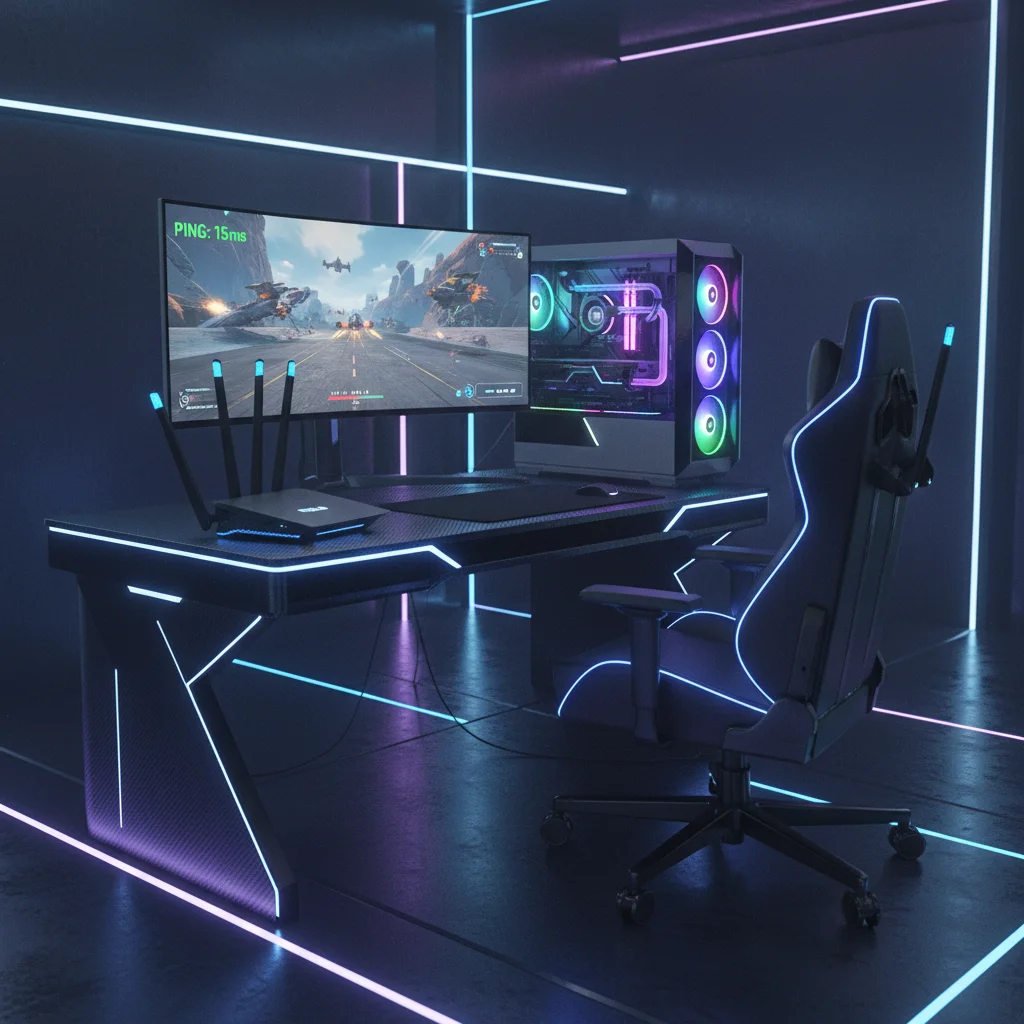
In the fiercely competitive world of online gaming, every millisecond counts. A high-performing internet connection isn’t just a luxury; it’s a necessity. As we hurtle towards 2026, the demand for lightning-fast, ultra-low-latency connections continues to grow. If you’re tired of lag spikes, frustrating disconnections, and that feeling of being one step behind your opponents, it’s time to take control of your home network. This comprehensive guide will walk you through five essential steps to significantly optimise home network gaming performance, aiming for a consistent sub-20ms latency.
Achieving sub-20ms latency isn’t merely about having a fast internet plan. It’s about a finely tuned ecosystem where every component, from your internet service provider (ISP) to your gaming device, works in harmony. We’ll delve into hardware upgrades, software configurations, and best practices that will not only enhance your gaming experience but also provide a smoother, more reliable connection for all your online activities. Get ready to transform your home network into a gaming powerhouse and gain that crucial edge over the competition.
Step 1: Understand Your Current Network & Identify Bottlenecks
Before you can improve something, you need to understand its current state. The first crucial step to optimise home network gaming is to thoroughly assess your existing setup and pinpoint any weaknesses. This involves more than just running a speed test; it requires a deeper dive into latency, packet loss, and network congestion.
What is Latency and Why Does it Matter for Gaming?
Latency, often referred to as ‘ping’, is the time it takes for a data packet to travel from your gaming device to the game server and back. It’s measured in milliseconds (ms). For gaming, lower latency is always better. A ping of 20ms or less is generally considered excellent, providing a near real-time experience. Anything above 50ms can start to introduce noticeable delays, while 100ms or more can make competitive gaming frustratingly difficult.
- High Latency (Lag): Causes delays between your actions and the game’s response, leading to missed shots, teleporting enemies, and general frustration.
- Packet Loss: Occurs when data packets fail to reach their destination. This results in stuttering, freezes, and an overall choppy experience, even if your latency is otherwise low.
- Jitter: The variation in successive packet arrival times. High jitter makes your connection unstable, causing inconsistent lag.
How to Test Your Network Performance
You can’t fix what you don’t measure. Here’s how to get a clear picture of your network’s health:
- Ping Tests: Use online tools (e.g., speedtest.net, fast.com) to measure your ping to various servers. For a more accurate gaming-centric test, many online games display your in-game ping. You can also use the command prompt on Windows (
ping google.com -t) or Terminal on macOS/Linux to continuously ping a server and observe latency and packet loss. - Traceroute: This command (
tracert google.comon Windows,traceroute google.comon macOS/Linux) shows the path your data takes to reach a destination, identifying each ‘hop’ (router) along the way. High latency at a specific hop can indicate an issue with your ISP or a particular point in the network. - Network Monitoring Tools: Software like PingPlotter or network monitoring features built into some gaming routers can provide a more detailed, real-time view of your network performance, including historical data on latency and packet loss.
- Check for Background Usage: Identify what other devices and applications on your network are consuming bandwidth. Streaming 4K video, large downloads, or multiple users can significantly impact your gaming experience.
Common Bottlenecks to Look For:
- Outdated Router: An old router might not support modern Wi-Fi standards or have sufficient processing power to handle multiple devices simultaneously.
- Wi-Fi Interference: Other wireless networks, Bluetooth devices, microwaves, and even cordless phones can interfere with your Wi-Fi signal.
- Distance from Router: The further your gaming device is from the router, the weaker the signal and higher the potential for latency and packet loss.
- Cable Quality: Damaged Ethernet cables or low-quality cables can introduce issues.
- ISP Issues: Sometimes, the problem lies with your internet service provider. High latency to external servers or frequent disconnections might warrant a call to your ISP.
- Network Congestion: Too many devices or bandwidth-intensive activities on your network can saturate your connection.
By thoroughly understanding these aspects, you lay the groundwork for effective optimisation. Without this initial assessment, any changes you make might be guesswork, yielding suboptimal results. This diagnostic phase is paramount to truly optimise home network gaming.
Step 2: Upgrade Your Hardware – The Foundation of Low Latency
Once you’ve identified potential bottlenecks, the next step in our quest to optimise home network gaming is to ensure your hardware is up to the task. Even the best software configurations can’t compensate for outdated or inadequate equipment.
The Router: Your Network’s Central Hub
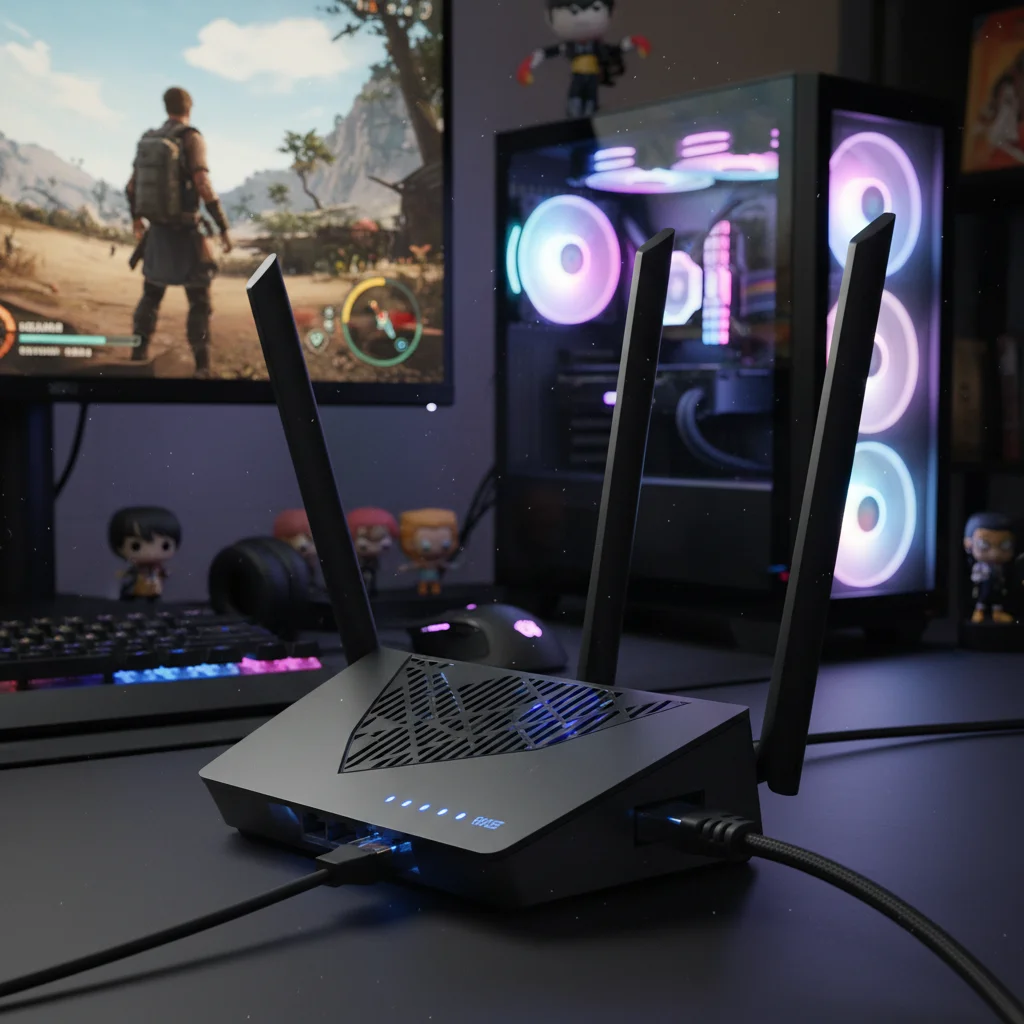
Your router is the heart of your home network. An old or basic router can be a major bottleneck. Consider upgrading to a modern gaming router, especially one that supports the latest Wi-Fi standards.
- Wi-Fi 6 (802.11ax) / Wi-Fi 6E: These standards offer significant improvements in speed, efficiency, and capacity, especially in congested network environments. Wi-Fi 6E, in particular, introduces the 6GHz band, which is less congested and offers higher bandwidth, leading to lower latency for compatible devices.
- Powerful Processors & RAM: Gaming routers often feature more powerful CPUs and more RAM to handle multiple concurrent connections and advanced features like Quality of Service (QoS) without bogging down.
- Multi-Gigabit Ethernet Ports: Look for routers with 2.5Gbps or even 10Gbps WAN/LAN ports, especially if you have a high-speed internet plan or plan to upgrade in the future.
- Dedicated Gaming Features: Many gaming routers come with features like built-in VPN support, game-specific QoS presets, and dynamic frequency selection to prioritise gaming traffic automatically.
Wired vs. Wireless: The Undisputed Champion for Gaming
While Wi-Fi technology has come a long way, a wired Ethernet connection remains the gold standard for competitive online gaming. It offers unparalleled stability, speed, and significantly lower latency compared to Wi-Fi.
If possible, always connect your primary gaming device (PC, console) directly to your router using an Ethernet cable.
- Ethernet Cable Type: Use at least a Cat5e or, ideally, a Cat6 Ethernet cable. Cat6 cables are better shielded and can handle higher bandwidth over longer distances without signal degradation.
- Powerline Adapters: If running a long Ethernet cable isn’t feasible, consider powerline adapters. These devices use your home’s electrical wiring to transmit network data. While not as good as a direct Ethernet connection, they are often superior to Wi-Fi, especially over long distances or through multiple walls. Ensure you get high-quality adapters with good throughput.
- Mesh Wi-Fi Systems: For larger homes, a mesh Wi-Fi system can provide excellent coverage. However, for critical gaming devices, still prioritize a wired connection to the nearest mesh node if possible. Some mesh systems also offer dedicated backhaul channels (often 5GHz or 6GHz) to reduce latency between nodes.
Modem Considerations
Your modem is the bridge between your home network and your ISP. If you’re renting one from your ISP, ensure it’s a modern model capable of handling your internet speed. An outdated DOCSIS 3.0 modem, for instance, might bottleneck a gigabit internet plan. Upgrading to a DOCSIS 3.1 modem is essential for multi-gigabit speeds.
Network Adapters
If you’re gaming on PC via Wi-Fi, ensure your computer’s wireless adapter supports Wi-Fi 6 or Wi-Fi 6E to take full advantage of a new router. An old Wi-Fi 5 (802.11ac) adapter won’t be able to utilise the benefits of a Wi-Fi 6E router.
Investing in the right hardware creates a robust foundation. Without it, even the most meticulous software adjustments will struggle to deliver the sub-20ms latency you desire. This hardware upgrade is a critical step to truly optimise home network gaming.
Step 3: Optimise Router Settings for Peak Performance
With your hardware in place, it’s time to delve into your router’s settings. This is where you can fine-tune your network to prioritise gaming traffic and minimise interference. Access your router’s administrative interface (usually by typing its IP address, e.g., 192.168.1.1, into a web browser).
Quality of Service (QoS) – Prioritise Gaming Traffic
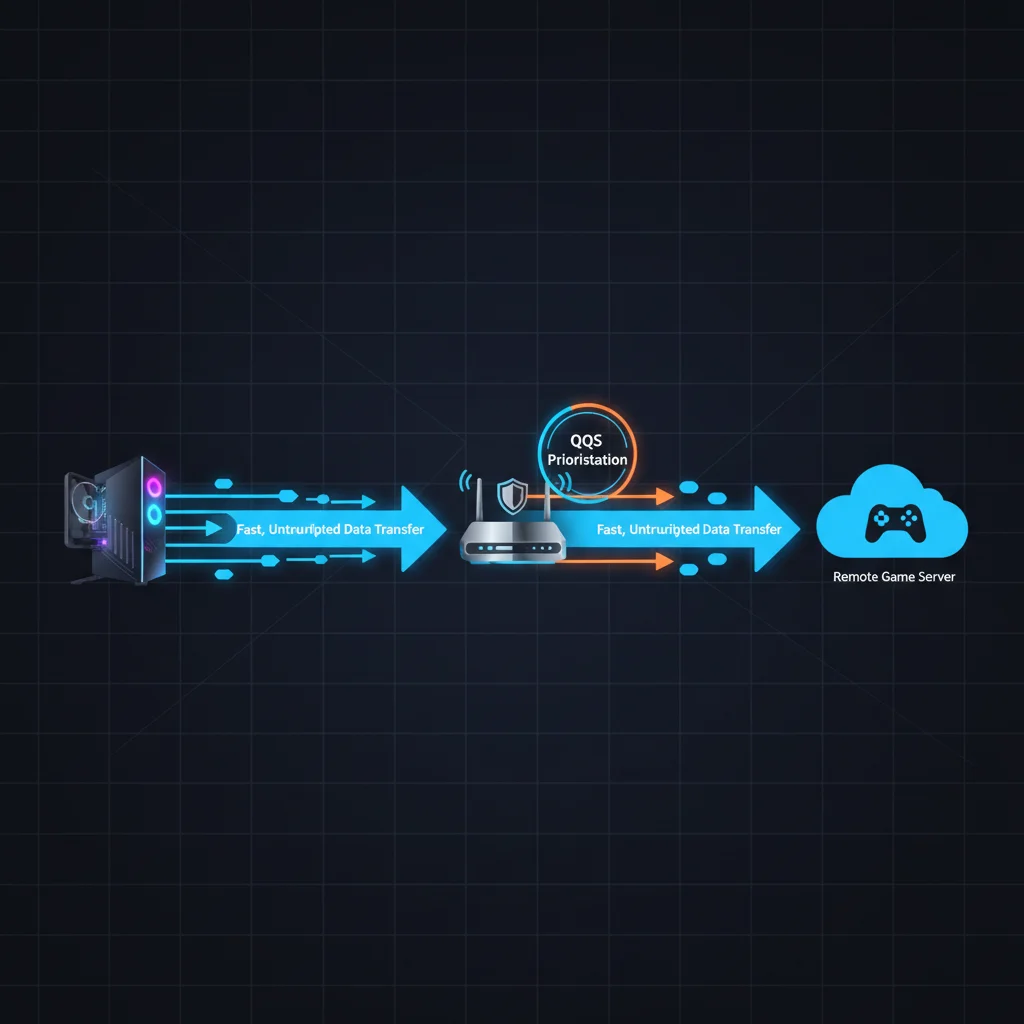
Quality of Service (QoS) is perhaps the most critical setting for gaming. It allows you to prioritise certain types of network traffic over others. By giving gaming packets precedence, you ensure that your game doesn’t suffer when someone else is streaming Netflix or downloading large files.
- Enable QoS: Look for QoS settings in your router’s interface.
- Prioritise Gaming Devices/Applications: Many routers allow you to prioritise specific devices (your gaming PC/console) or even specific applications/ports. Set your gaming device to the highest priority.
- Bandwidth Allocation: Some advanced QoS settings allow you to allocate a minimum guaranteed bandwidth to your gaming device, ensuring it always has enough resources.
- Adaptive QoS/Dynamic QoS: Newer routers often feature intelligent QoS systems that can automatically detect and prioritise gaming traffic.
Properly configured QoS is a game-changer for shared networks, making it a cornerstone when you want to optimise home network gaming.
Channel Optimisation for Wi-Fi
If you must use Wi-Fi, optimising your wireless channels can significantly reduce interference and improve stability:
- 2.4GHz vs. 5GHz vs. 6GHz:
- 2.4GHz: Offers wider coverage but is more susceptible to interference and generally slower. Avoid for gaming if possible.
- 5GHz: Faster and less congested than 2.4GHz, but with shorter range. Ideal for gaming if a wired connection isn’t an option.
- 6GHz (Wi-Fi 6E): The newest band, offering even higher speeds and much lower congestion. Best for gaming on compatible devices within close range.
- Channel Selection: Use a Wi-Fi analyser app on your phone or computer to identify the least congested channels in your area. Manually set your router to use these channels (e.g., channels 1, 6, or 11 for 2.4GHz; various non-overlapping channels for 5GHz).
- Channel Width: For 5GHz and 6GHz, using a wider channel width (e.g., 80MHz or 160MHz) can provide higher speeds but might also increase interference. Test to see what works best in your environment.
Firmware Updates
Always keep your router’s firmware updated. Manufacturers frequently release updates that improve performance, add new features, and patch security vulnerabilities. Check your router’s settings or the manufacturer’s website for the latest firmware.
Other Advanced Settings (Use with Caution)
- Port Forwarding/DMZ: For certain games, opening specific ports or placing your console/PC in a DMZ (Demilitarised Zone) can improve connectivity by bypassing some firewall restrictions. However, DMZ should be used with extreme caution as it exposes your device directly to the internet, presenting a significant security risk. Only use it if absolutely necessary and understand the implications.
- UPnP (Universal Plug and Play): This feature automatically opens and closes ports as needed. While convenient, it can sometimes be a security risk and may not always work perfectly, occasionally leading to connectivity issues. You might consider disabling it and manually forwarding ports if you experience problems.
- DNS Servers: Switching from your ISP’s default DNS servers to faster, public DNS servers (like Google DNS or Cloudflare DNS) can sometimes reduce the time it takes to resolve domain names, subtly contributing to a snappier feel. This doesn’t directly impact in-game latency but can improve overall browsing and connection establishment times.
Careful configuration of these settings is crucial to truly optimise home network gaming by making your network work smarter, not just harder.
Step 4: Optimise Your Gaming Device and Software
Your network might be perfectly tuned, but if your gaming device or its software isn’t optimised, you’ll still experience lag. This step focuses on ensuring your gaming machine is ready for peak performance.
PC Optimisation
- Wired Connection: Reiterate the importance of a wired Ethernet connection.
- Update Network Drivers: Ensure your network adapter drivers are up-to-date. Outdated drivers can cause performance issues. Visit your motherboard or network card manufacturer’s website.
- Disable Background Applications: Close any unnecessary applications running in the background (browsers, streaming services, download managers, cloud sync services) that might consume bandwidth or CPU resources.
- Windows Game Mode: Enable Windows Game Mode (Settings > Gaming > Game Mode) as it optimises your PC for gaming by prioritising resources.
- Network Adapter Settings (Advanced): In Windows Device Manager, go to your network adapter’s properties, then the ‘Advanced’ tab. Look for settings like ‘Jumbo Frame’ (disable it unless specifically required), ‘Energy Efficient Ethernet’ (disable for gaming), and ‘Receive Side Scaling (RSS)’ (enable for multi-core processors). Experiment with these cautiously.
- Firewall & Antivirus: Ensure your firewall and antivirus software aren’t overly aggressive, potentially interfering with game connections. Temporarily disable them for testing if you suspect an issue, but re-enable them immediately for security.
- Operating System Updates: Keep your OS updated. Performance improvements and network stack enhancements are often included in major updates.
Console Optimisation (Xbox, PlayStation, Nintendo Switch)
- Wired Connection: Just like PCs, consoles benefit immensely from a wired Ethernet connection.
- Power Cycle: Occasionally power cycling your console (a full shutdown, not just rest mode) can clear temporary network issues.
- Clear Cache: Consoles accumulate cache data over time. Clearing it can resolve performance glitches. Consult your console’s support documentation for specific steps.
- Disable Background Downloads/Updates: Ensure no large game downloads or system updates are running in the background while you’re trying to play online.
- Check Server Region: Always ensure you are connecting to the closest possible game server region. Playing on a distant server significantly increases latency, regardless of your home network’s quality.
Router & Device Placement
If Wi-Fi is your only option, placement is key:
- Central Location: Place your router in a central, open location in your home, ideally high up, away from walls and obstructions.
- Avoid Interference: Keep your router away from other electronics that emit electromagnetic interference (microwaves, cordless phones, baby monitors).
- Antenna Direction: If your router has adjustable antennas, try orienting them in different directions to optimise signal strength towards your gaming device.
By optimising your gaming device and its surrounding environment, you eliminate another layer of potential lag, bringing you closer to your sub-20ms goal and truly helping to optimise home network gaming.
Step 5: Regular Maintenance & Monitoring
Achieving low latency isn’t a one-time setup; it’s an ongoing process. Regular maintenance and monitoring are essential to ensure your network continues to perform optimally and to quickly address any new issues that arise.
Regular Network Performance Checks
Make it a habit to periodically run ping tests and traceroutes, especially if you notice any degradation in performance. Compare current results with your baseline measurements from Step 1. This helps you identify if a problem has developed and where it might be located.
Reboot Your Equipment
It’s a cliché, but it works. Regularly rebooting your modem and router (at least once a month, or more frequently if you experience issues) can clear temporary glitches, refresh network connections, and free up memory. A simple power cycle can often resolve inexplicable lag spikes.
Monitor for ISP Issues
Keep an eye on your ISP’s status. Check their website, social media, or dedicated service status pages for local outages or known issues. Sometimes, the problem isn’t your home network but a wider infrastructure problem. If you consistently see high latency to external servers or frequent disconnections, contact your ISP with your diagnostic data (ping tests, traceroutes) to help them troubleshoot.
Review Wi-Fi Environment
Your Wi-Fi environment can change. New neighbours might set up their own Wi-Fi networks, causing increased interference. Periodically use a Wi-Fi analyser app to scan for congested channels and adjust your router’s Wi-Fi channel settings if necessary.
Update Everything
Hardware and software evolve. Regularly check for and install updates for:
- Router Firmware: As mentioned in Step 3.
- Gaming Device OS: Windows, macOS, console firmware.
- Network Adapter Drivers: For your PC.
- Game Clients: Ensure your games themselves are updated, as patches often include network optimisations.
Physical Inspection
Periodically inspect your cables. Ensure Ethernet cables are securely plugged in, not bent sharply, and free from damage. Check coaxial cables for your modem to ensure they are finger-tight and not frayed.
Consider a Dedicated Gaming VPN (with caution)
While VPNs generally add latency due to encryption and routing, some specialised gaming VPNs claim to optimise routes to game servers, potentially reducing latency to specific distant servers. This is highly situational and requires testing. For most users, a direct connection is superior. Only consider this if you consistently have high ping to specific game servers that are geographically distant.
Future-Proofing Your Network
As we approach 2026, network technology will continue to advance. Keep an eye on emerging standards like Wi-Fi 7 (802.11be) and improvements in fibre optic infrastructure. Staying informed will help you make timely upgrades to maintain your competitive edge.
By integrating these maintenance practices into your routine, you ensure that the effort you put into optimising your network today continues to pay dividends for months and years to come. Consistent monitoring and timely adjustments are key to sustained, low-latency gaming and truly optimise home network gaming.
Conclusion: Dominate with a Sub-20ms Latency Network
Achieving and maintaining sub-20ms latency for your gaming setup by 2026 is an entirely attainable goal, but it requires a systematic approach. It’s not about a single magic bullet, but rather a combination of understanding your current network, strategically upgrading your hardware, meticulously configuring your router, optimising your gaming devices, and committing to ongoing maintenance.
By following these five essential steps, you’ll transform your home network from a potential source of frustration into a powerful asset. You’ll experience smoother gameplay, more responsive controls, and a significant competitive advantage over opponents plagued by lag. Imagine hitting those critical shots, executing perfect combos, and reacting instantly to in-game events – all because your network is performing at its absolute peak.
Remember, the digital battlefield of 2026 demands precision and speed. Don’t let your network be the reason you fall short. Take action today to optimise home network gaming, eliminate lag, and truly dominate your online gaming experience. The future of low-latency gaming is within your grasp.