Mastering 4K 60fps Game Streaming: Essential Tools & Setup Guide for 2026
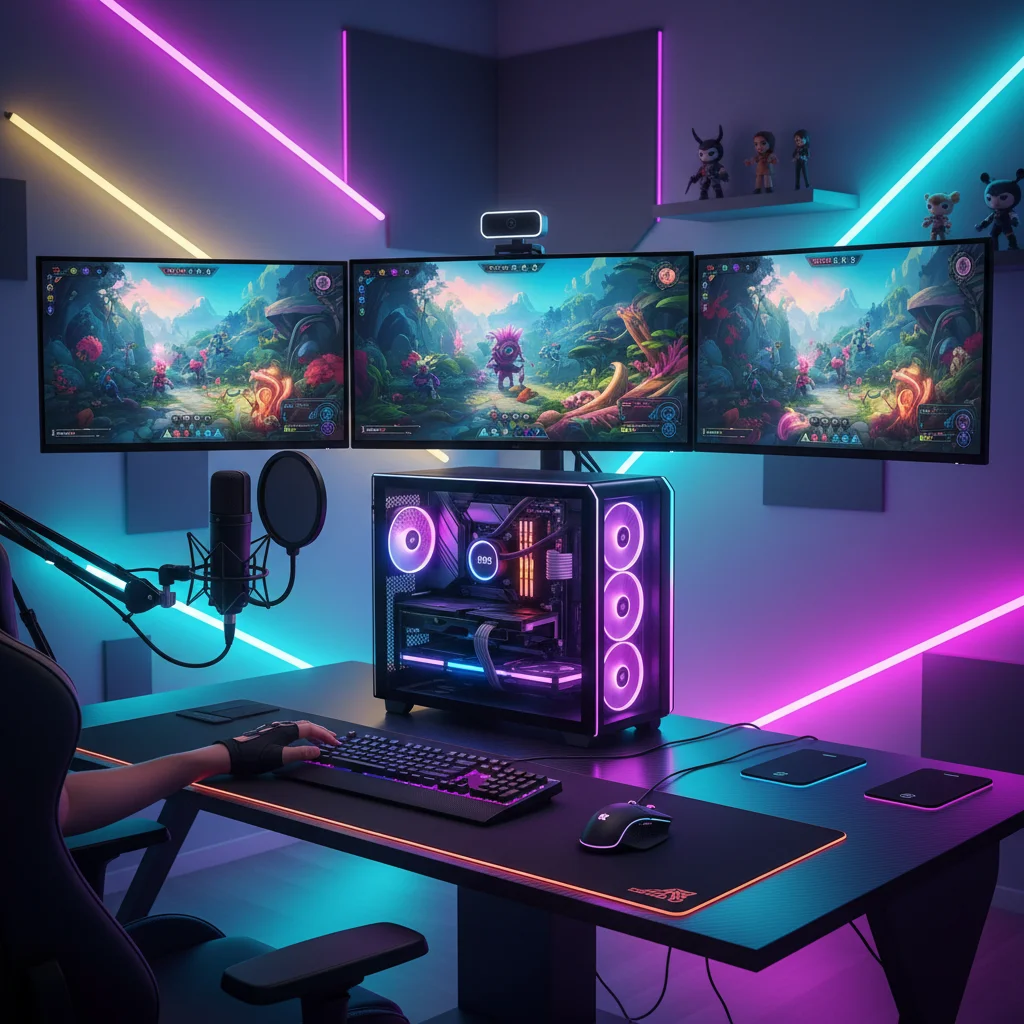
The landscape of game streaming is constantly evolving, pushing the boundaries of what’s possible in terms of visual fidelity and audience engagement. As we step into 2026, the demand for pristine 4K 60fps content is no longer a niche desire but a mainstream expectation for serious broadcasters. Delivering such high-quality streams, however, requires more than just a powerful gaming PC; it demands a meticulously crafted 4K 60fps Streaming Setup. This comprehensive guide will walk you through the essential components, software configurations, and optimization strategies needed to achieve a professional-grade 4K 60fps broadcast, focusing on three pivotal tools that form the backbone of any elite streaming rig.
Gone are the days when 720p or even 1080p streams were considered cutting-edge. Today’s viewers, equipped with 4K displays and high-speed internet, expect nothing less than crystal-clear, buttery-smooth visuals. Meeting this expectation not only enhances your audience’s viewing experience but also significantly elevates your brand as a streamer. The journey to a flawless 4K 60fps Streaming Setup can seem daunting, filled with technical jargon and a myriad of hardware choices. But fear not, for we will demystify the process, breaking down each critical element and providing actionable advice to get you broadcasting in stunning ultra-high definition.
Success in the competitive streaming world hinges on two main factors: engaging content and impeccable technical delivery. While your personality and gameplay skill are paramount for content, the technical aspect, particularly achieving a stable and high-quality 4K 60fps stream, is what sets professional broadcasters apart. This guide is designed to be your definitive resource, ensuring that by the end, you’ll have a clear roadmap to building, configuring, and optimizing your 4K 60fps Streaming Setup, ready to captivate audiences with unparalleled visual fidelity.
The Foundation: High-Performance Gaming PC & Dedicated Streaming PC (Optional but Recommended)
Before diving into the specific tools, it’s crucial to understand the computational demands of 4K 60fps streaming. This isn’t a task for an average gaming rig. To maintain peak in-game performance while simultaneously encoding and uploading a high-bitrate 4K stream, you’ll need substantial processing power. While a single, exceptionally powerful PC can handle both tasks, a dual-PC setup remains the gold standard for uncompromising quality and reliability. Let’s break down the requirements for each.
Gaming PC Specifications for 4K 60fps
- CPU: An Intel Core i9 (13th Gen or newer, e.g., i9-13900K, i9-14900K) or AMD Ryzen 9 (7000 series or newer, e.g., Ryzen 9 7950X3D) is highly recommended. These processors offer the raw multi-core performance needed for demanding games at 4K.
- GPU: This is arguably the most critical component. For consistent 4K 60fps gaming, you’ll need a top-tier graphics card. NVIDIA’s RTX 4080 Super or RTX 4090, or AMD’s RX 7900 XTX are excellent choices. Future-proofing with the latest generation is advisable for 2026.
- RAM: 32GB of DDR5 RAM (6000MHz or faster) is the sweet spot. While 16GB might suffice for some games, 32GB ensures smooth multitasking and prevents bottlenecks.
- Storage: A fast NVMe SSD (PCIe Gen4 or Gen5) is essential for game loading times and overall system responsiveness. A 2TB drive is a good starting point for your primary game library.
- Motherboard & PSU: A robust motherboard capable of supporting your chosen CPU and RAM, along with a high-wattage (850W+ for single PC, 1000W+ for dual-PC considerations) 80 PLUS Gold or Platinum certified power supply, are vital for stability.
Dedicated Streaming PC Specifications (If Opting for Dual PC Setup)
A separate streaming PC offloads the encoding tasks, allowing your gaming PC to focus solely on running games at maximum settings. This setup virtually eliminates performance drops in-game due to streaming. For the streaming PC, the emphasis shifts slightly:
- CPU: While not as demanding as the gaming PC, a strong multi-core CPU is still beneficial for software encoding. An Intel Core i7 (current or previous gen, e.g., i7-12700K) or AMD Ryzen 7 (5000 series or newer, e.g., Ryzen 7 5800X3D) provides ample power. If using a dedicated GPU for encoding, a slightly less powerful CPU might suffice.
- GPU: This is where modern encoders shine. An NVIDIA RTX 30 Series or 40 Series GPU is highly recommended for its superior NVENC encoder. Even an older RTX card (e.g., RTX 3060) can handle 4K encoding efficiently, freeing up your gaming GPU. AMD’s AMF encoder has also significantly improved.
- RAM: 16GB of DDR4 or DDR5 RAM is generally sufficient for a dedicated streaming PC.
- Storage: A smaller NVMe SSD (500GB-1TB) for the OS and streaming software is adequate.
Essential Tool 1: The High-Performance Capture Card
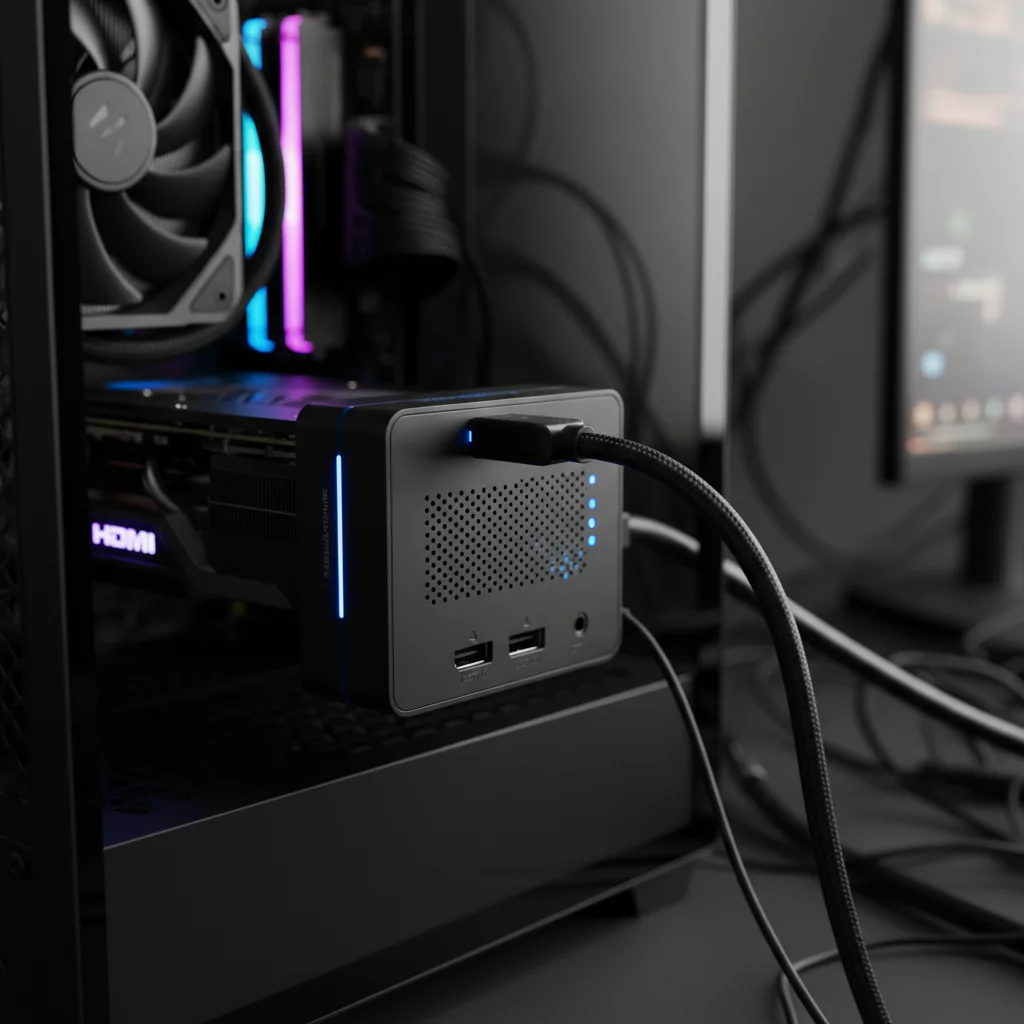
In a dual-PC setup, the capture card is the bridge that carries your pristine 4K 60fps gameplay from your gaming PC to your streaming PC. Even with a single-PC setup, an internal capture card can sometimes offer a dedicated hardware path for video processing, reducing the load on your main GPU. For 4K 60fps Streaming Setup, you cannot compromise on this component.
Key Features to Look For:
- 4K 60fps Passthrough & Capture: Ensure the card supports both capturing and passing through a 4K 60fps signal without any degradation or latency. This means your gaming monitor can display the game in full 4K 60fps, while the card simultaneously sends that signal to your streaming PC.
- HDR Support: High Dynamic Range (HDR) is becoming increasingly common in games. A capture card with HDR passthrough and capture capabilities will allow you to stream richer, more vibrant colours, provided your audience’s displays support it.
- Low Latency: Crucial for a smooth gaming experience, especially if you’re using the passthrough feature.
- Connectivity: Internal PCIe cards (e.g., Elgato 4K60 Pro Mk.2, AVerMedia Live Gamer 4K) offer the highest bandwidth and lowest latency, making them ideal for dedicated streaming PCs. External USB 3.0/3.1 or Thunderbolt 3/4 cards (e.g., Elgato HD60 X, AVerMedia Live Gamer ULTRA) are more portable and suitable for single-PC setups or laptops, but ensure they can handle the 4K 60fps bandwidth reliably.
Recommended Capture Cards for 2026:
- Elgato 4K60 Pro Mk.2: A long-standing favourite for its robust performance, low latency, and excellent software integration. It’s an internal PCIe card, perfect for a dedicated streaming PC.
- AVerMedia Live Gamer 4K: Another strong contender in the internal PCIe capture card market, offering similar capabilities to the Elgato 4K60 Pro Mk.2 with reliable performance.
- Razer Ripsaw HD: While primarily known for 1080p, Razer often updates its lineup. Keep an eye out for their 4K offerings, which typically integrate well into gaming ecosystems.
- Blackmagic Design DeckLink Mini Recorder 4K: For those seeking a more professional, broadcast-grade solution, Blackmagic offers exceptional quality, though it might require a steeper learning curve.
Choosing the right capture card is paramount for your 4K 60fps Streaming Setup. It’s the gatekeeper of your visual quality, ensuring that the stunning graphics from your gaming PC are faithfully transmitted for encoding.
Essential Tool 2: OBS Studio (or Streamlabs Desktop) – The Command Center
Open Broadcaster Software (OBS) Studio is the undisputed king of streaming software, offering unparalleled flexibility, customization, and performance. Streamlabs Desktop (formerly Streamlabs OBS) is a popular fork that provides a more user-friendly interface with built-in alerts and widgets. Whichever you choose, mastering your streaming software is crucial for a polished 4K 60fps Streaming Setup.
Key Configuration Settings for 4K 60fps:
1. Video Settings:
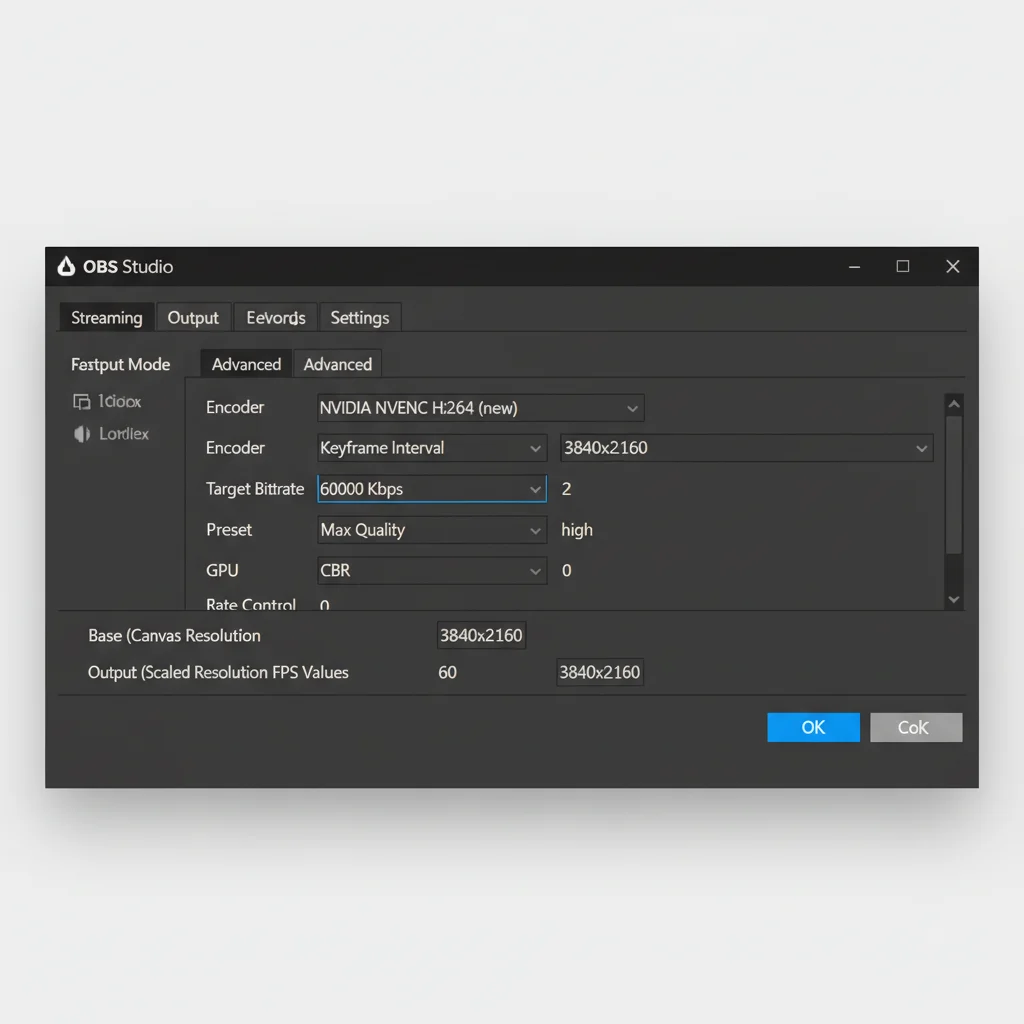
- Base (Canvas) Resolution: Set this to the resolution of your gaming monitor, typically 3840×2160 (4K).
- Output (Scaled) Resolution: For a true 4K stream, this should also be 3840×2160. If your internet or hardware struggles, you might consider scaling down, but the goal here is native 4K.
- FPS Common Values: Set to 60. This is non-negotiable for smooth gameplay.
2. Output Settings (Streaming Tab):
- Encoder:
- NVIDIA NVENC (New): If you have an NVIDIA RTX GPU (on either your gaming or streaming PC), this is generally the best choice. NVENC is a dedicated hardware encoder that offers excellent quality with minimal performance impact on your CPU/GPU.
- AMD AMF (New): AMD’s hardware encoder has seen significant improvements and is a strong alternative for AMD GPU users.
- x264: This is a software encoder that uses your CPU. While it can produce theoretically higher quality at lower bitrates, it’s extremely CPU-intensive, especially for 4K 60fps. Only use this if you have an exceptionally powerful CPU on your streaming PC and no viable hardware encoder.
- Rate Control:
- CBR (Constant Bitrate): Most platforms (Twitch, YouTube) recommend CBR. It maintains a consistent bitrate, which is easier for viewers to receive.
- CQP (Constant Quantization Parameter) / VBR (Variable Bitrate): While offering potentially better quality for recorded video, they can be less stable for live streaming on some platforms. Stick to CBR for live 4K streams.
- Bitrate: This is critical. For a high-quality 4K 60fps stream, you’ll need a substantial bitrate. YouTube recommends 20,000-50,000 Kbps (20-50 Mbps) for 4K 60fps. Twitch’s recommended maximum is typically lower (around 8,000 Kbps for 1080p), but they are increasingly supporting higher bitrates for partners and affiliates. Always check the latest platform recommendations, but aim as high as your internet upload speed and platform allow, ideally 20,000 Kbps+.
- Keyframe Interval: Set to 2 seconds.
- Preset/Quality: For NVENC, start with ‘Quality’ or ‘Max Quality’. If you experience encoding lag, try ‘Performance’. For x264, ‘Veryfast’ or ‘Faster’ are common starting points; anything slower will likely crush your CPU.
- Profile: ‘High’.
Properly configuring OBS Studio is an art form. It requires balancing quality, performance, and your internet’s capabilities. Don’t be afraid to experiment with settings, but always prioritize a stable stream over minor quality bumps. A dropped frame or stutter is far more detrimental than a slightly lower bitrate. Regular testing is key to perfecting your 4K 60fps Streaming Setup.
Essential Tool 3: Robust Internet Connection & Network Infrastructure
All the high-end hardware and software optimization in the world won’t matter if your internet connection can’t keep up. A stable, high-speed upload connection is not just a recommendation; it’s an absolute necessity for 4K 60fps Streaming Setup. Furthermore, your internal network infrastructure plays a crucial role in ensuring data flows smoothly between your devices.
Internet Requirements:
- Upload Speed: This is the most critical factor. For a 4K 60fps stream with a bitrate of 20-50 Mbps, you need an upload speed significantly higher than that. Aim for at least 60-100 Mbps upload speed to provide ample headroom and stability. Remember, internet speeds are often advertised as ‘up to,’ and real-world performance can vary. Test your actual upload speed regularly using tools like Speedtest.net.
- Stability: Consistent upload speed is more important than peak speed. A connection with frequent drops or high packet loss will result in a choppy, pixelated stream, regardless of your bitrate. Fiber optic connections are generally the most reliable.
- Ping/Latency: While less critical for stream quality itself, low ping is essential for competitive online gaming.
Network Infrastructure:
- Wired Connection (Ethernet): This is non-negotiable for both your gaming PC and streaming PC. Wi-Fi, no matter how advanced, introduces latency and potential instability that can negatively impact your stream. Use high-quality Cat6 or Cat7 Ethernet cables.
- High-Quality Router: Invest in a modern router capable of handling high bandwidth, especially if you have multiple devices connected to your network. Features like Quality of Service (QoS) can help prioritize your streaming traffic, though for 4K 60fps, dedicated bandwidth is always preferable.
- Separate Network for Streaming (Optional): For ultimate control and stability, some professional streamers set up a dedicated network segment or even a separate internet connection solely for their streaming PC. This eliminates any potential interference from other household devices.
Do not underestimate the importance of your network. It’s the lifeline of your stream. A weak link here will undermine all your other investments in a top-tier 4K 60fps Streaming Setup.
Additional Considerations for Your 4K 60fps Streaming Setup
While the three essential tools form the core, several other components and practices will refine your 4K 60fps Streaming Setup and elevate your broadcast from good to truly exceptional.
Audio Quality: The Unsung Hero
Visuals might grab attention, but audio keeps it. A professional microphone is as important as your 4K video. Invest in a good XLR microphone (e.g., Shure SM7B, Rode Procaster) paired with an audio interface (e.g., Focusrite Scarlett, GoXLR) for superior sound. Even a high-quality USB microphone (e.g., Blue Yeti X, Rode NT-USB+) is a significant upgrade over a headset mic. Proper gain staging, noise gates, and compressors within OBS or your audio interface will ensure your voice is clear, crisp, and free of background noise.
Webcam & Lighting: Presentation Matters
If you feature your face on stream, a 4K webcam (e.g., Logitech Brio, Razer Kiyo Pro) or even a mirrorless/DSLR camera connected via a capture card (e.g., Elgato Cam Link 4K) will complement your 4K gameplay. Crucially, good lighting is more important than camera resolution. Ring lights, key lights, and fill lights will dramatically improve your visual presence, making you look professional and well-lit, regardless of the camera itself.
Stream Deck or Macro Pad: Efficiency and Control
A stream deck (like the Elgato Stream Deck) or a programmable macro pad can significantly streamline your workflow. Hotkeys for scene switching, muting audio sources, launching applications, or even sending chat messages can be programmed, allowing you to manage your stream smoothly without tabbing out of your game. This is invaluable for maintaining professionalism during live broadcasts.
Monitoring and Alerts: Stay Informed
Dedicate a secondary monitor to display your OBS preview, chat, and stream health. This allows you to constantly monitor your stream’s quality, check for dropped frames, and interact with your audience in real-time. Integrating stream alerts (followers, subscriptions, donations) through OBS or Streamlabs Desktop ensures a dynamic and interactive experience for your viewers.
Software Optimization: Beyond OBS
- Game Mode: Ensure Windows Game Mode is enabled.
- GPU Drivers: Keep your graphics drivers updated to the latest stable version. NVIDIA and AMD frequently release performance optimizations.
- Background Processes: Close unnecessary background applications and services on both your gaming and streaming PCs to free up resources.
- Antivirus: Ensure your antivirus isn’t aggressively scanning during streams.
Testing, Testing, 1-2-3!
Before going live to your audience, always perform test streams. Stream to an unlisted YouTube channel or use Twitch’s ‘Inspector’ tool to verify your settings. Pay close attention to:
- Dropped Frames: OBS will report these. High dropped frames indicate network issues or an overloaded encoder.
- Encoding Lag: This suggests your CPU/GPU (depending on encoder) cannot keep up. Adjust encoder preset or upgrade hardware.
- Audio/Video Sync: Ensure your audio and video are perfectly in sync.
- Visual Quality: Watch your test stream on a 4K display to confirm the fidelity.
Future-Proofing Your 4K 60fps Streaming Setup for 2026 and Beyond
The tech world moves at a blistering pace. While this guide focuses on a 4K 60fps Streaming Setup for 2026, it’s wise to consider future trends:
- 8K Streaming: While currently niche and incredibly demanding, 8K will eventually become more accessible. Building a setup with future upgrade paths (e.g., a high-end motherboard that supports next-gen CPUs/GPUs) is a smart move.
- AV1 Encoding: The AV1 codec offers superior compression efficiency compared to H.264 (AVC) and even H.265 (HEVC). As hardware support for AV1 encoding and decoding becomes more widespread, it will allow for higher quality streams at lower bitrates. Keep an eye on GPUs and streaming platforms supporting this.
- AI-Enhanced Streaming: AI is already being used for noise suppression (NVIDIA Broadcast), virtual backgrounds, and smarter content moderation. Expect AI tools to become even more integrated into streaming workflows, potentially automating scene transitions, optimizing bitrates dynamically, or even creating interactive elements based on viewer engagement.
- Cloud Streaming Services: While not for every streamer, cloud-based streaming solutions could reduce the local hardware burden in the future, allowing users to offload encoding and processing to powerful remote servers.
By investing in quality components and staying informed about emerging technologies, your 4K 60fps Streaming Setup will remain competitive and relevant for years to come.
Conclusion: Elevate Your Broadcast to 4K 60fps Excellence
Achieving a professional-grade 4K 60fps Streaming Setup in 2026 is an investment in both time and resources, but the payoff in audience engagement and content quality is immense. By meticulously selecting high-performance hardware, mastering your streaming software, and ensuring a robust network connection, you can deliver an unparalleled viewing experience that sets you apart from the competition.
Remember, the three essential tools – a powerful PC (or dual-PC setup), a high-performance capture card, and expertly configured OBS Studio – form the bedrock of your success. Combine these with excellent audio, professional presentation, and continuous optimization, and you’ll be well on your way to captivating audiences with stunning 4K 60fps broadcasts. The future of streaming is crisp, clear, and incredibly smooth, and with this guide, you’re now equipped to be at its forefront. Happy streaming!